
Managing Matters
The Matter Workspace
Section titled “The Matter Workspace”Each matter opens to its own workspace. The matter’s sections are listed in the side panel next to the icon rail — click a section to unfold its pages, then click a page to open it.
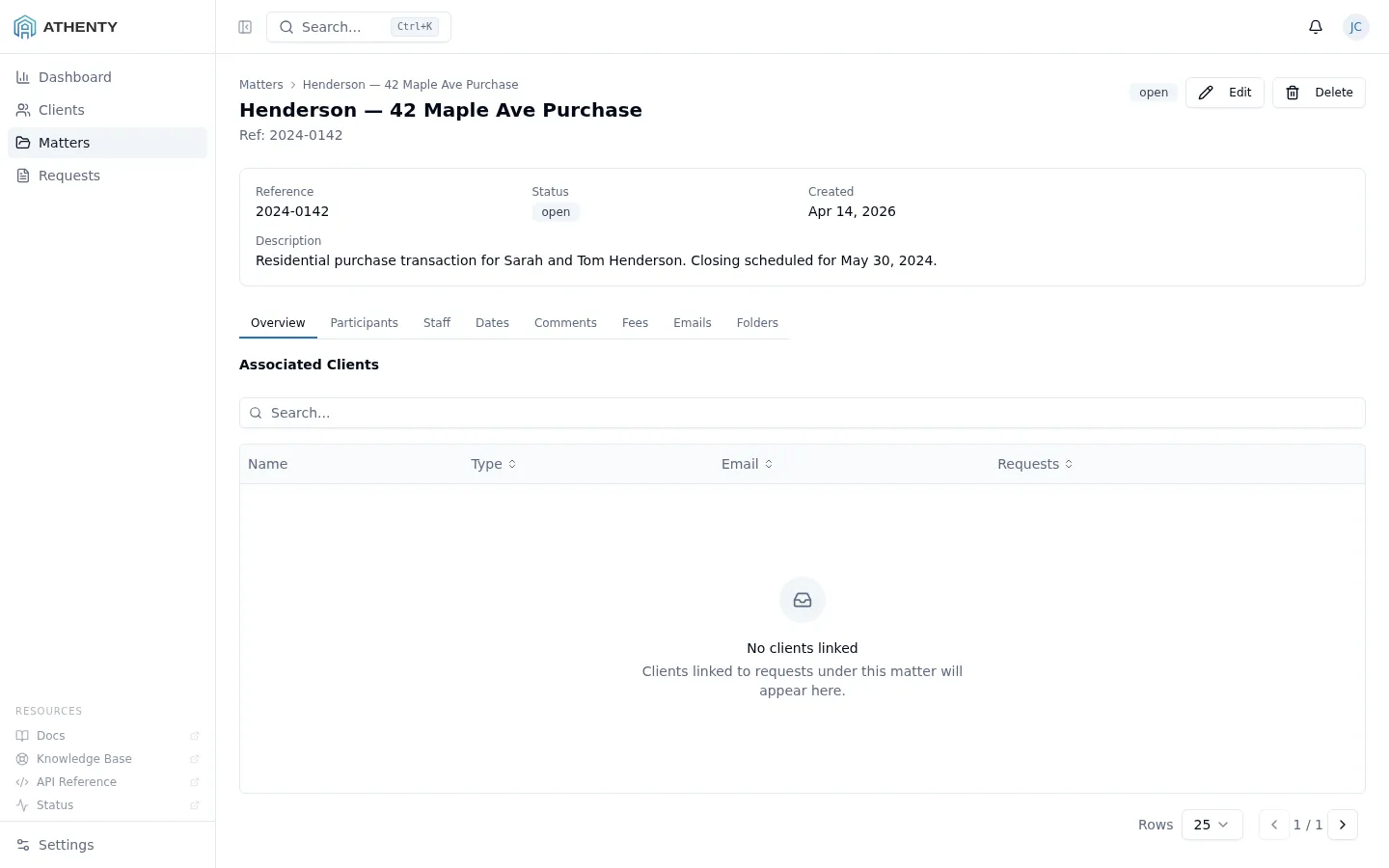
Overview
Section titled “Overview”Overview is the landing view for any matter. It shows:
- Matter name, type, and current status
- A free-text description field
- Summary metrics — participant count, upcoming dates, outstanding fees
You can edit the matter name, type, status, and description directly from Overview. Click Save after making changes.
Matter Status
Section titled “Matter Status”| Status | Meaning |
|---|---|
| Open | Active matter, work in progress |
| In Progress | Actively being worked on |
| Pending | Waiting on a third party or milestone |
| Closed | Matter completed or archived |
Participants
Section titled “Participants”Participants tracks everyone involved in the matter — clients, counterparties, lenders, and other contacts.
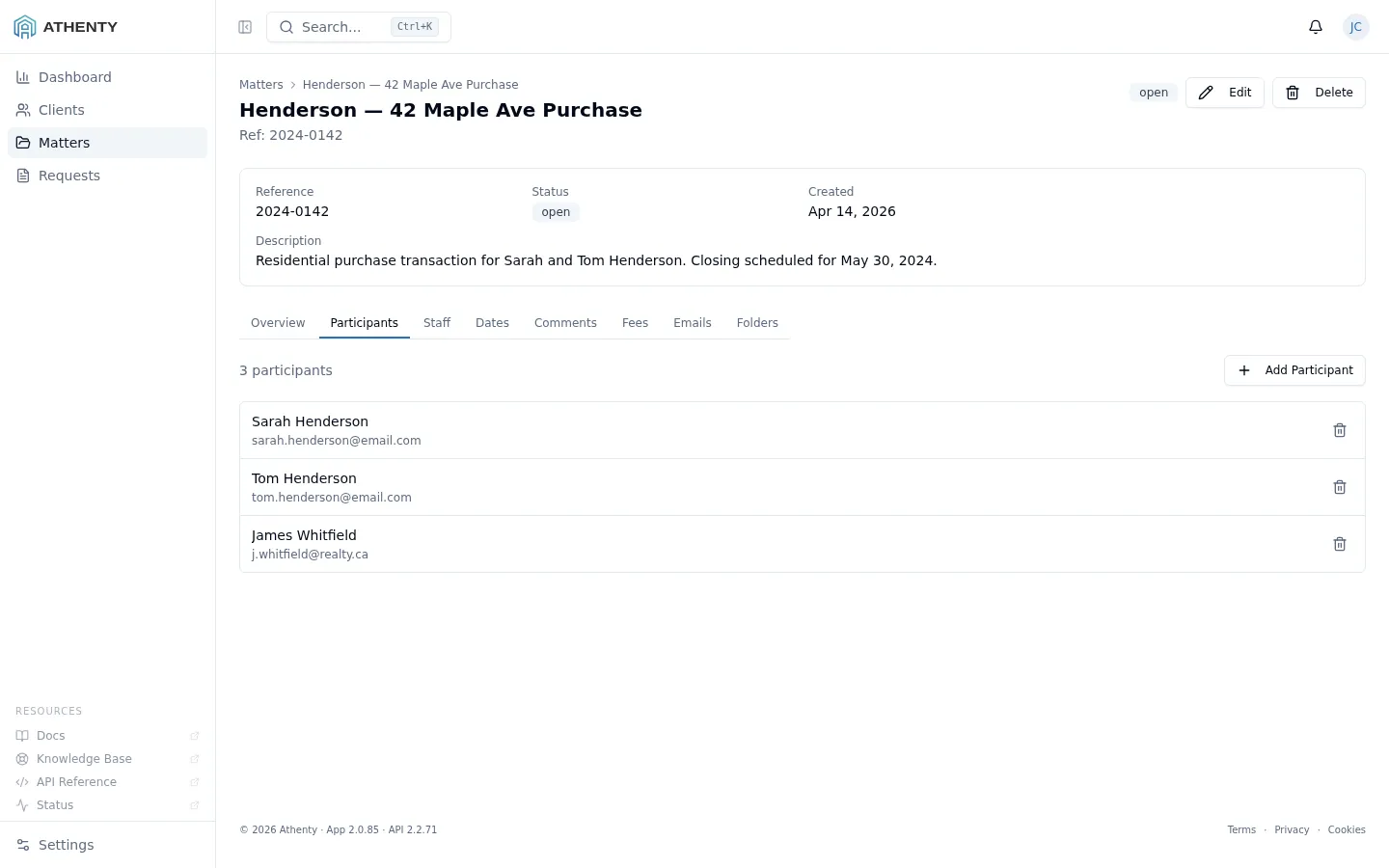
Adding a Participant
Section titled “Adding a Participant”- Click Add Participant.
- Search for an existing client in your Athenty account, or enter details for a new contact.
- Assign a role (e.g., Buyer, Seller, Guarantor, Lender, Tenant, Landlord, Other).
- Click Add.
Participants linked to existing Athenty clients will show their verification status. You can launch a new identity verification request directly from a participant record.
The matter’s dates are on Overview ▸ Summary, under Critical Dates and All Dates. They record key milestones and deadlines for the matter.
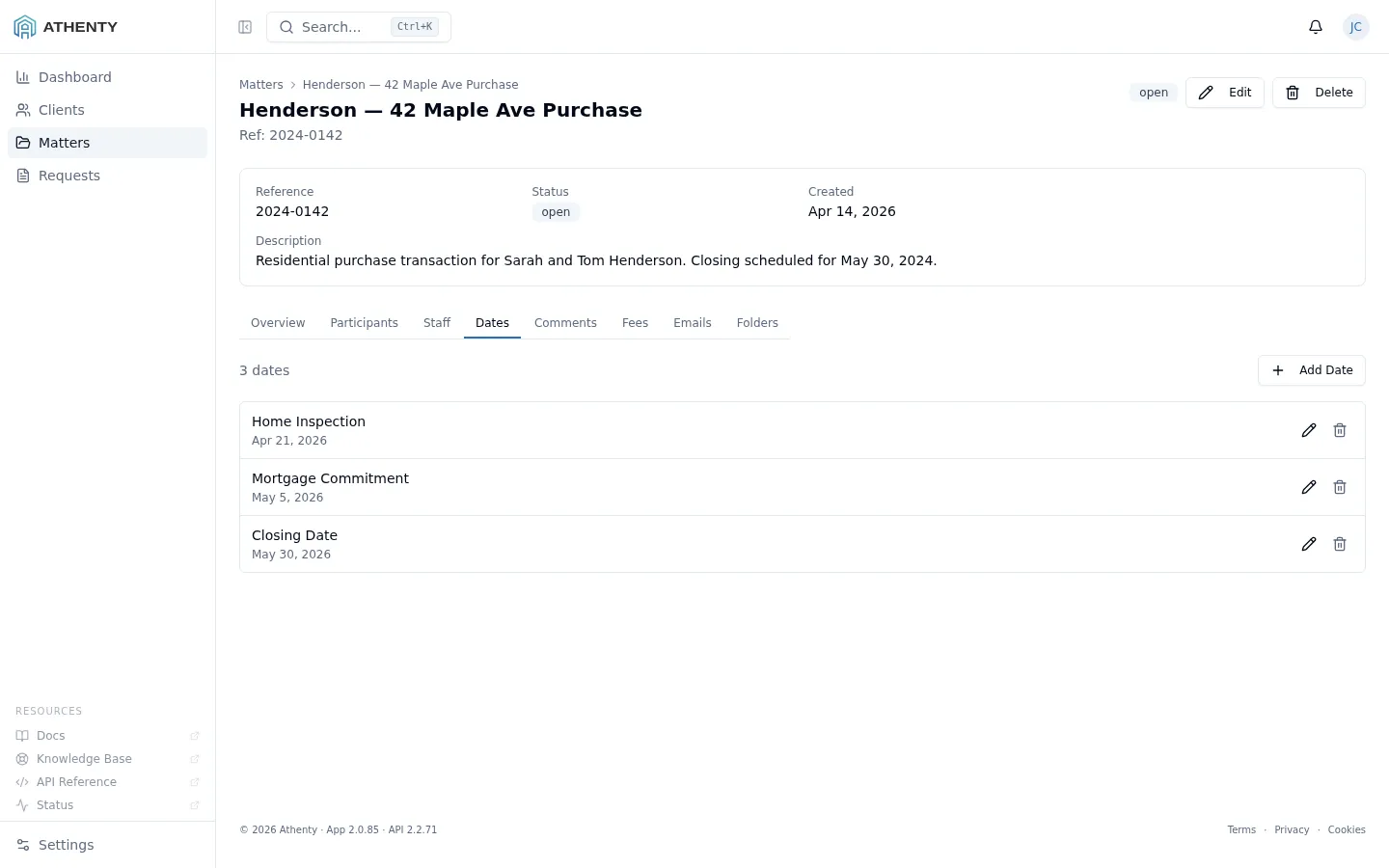
Adding a Date
Section titled “Adding a Date”- Click Add Date.
- Select a date type (e.g., Inspection, Mortgage, Closing, Signing, Expiry, Other).
- Enter the date and an optional description.
- Click Save.
Dates are displayed in chronological order. Overdue dates are highlighted. Upcoming dates within 7 days appear in the matter overview summary.
The matter’s Accounting ▸ Billings tracks monetary amounts associated with the matter — legal fees, disbursements, title insurance, retainers, and other charges.
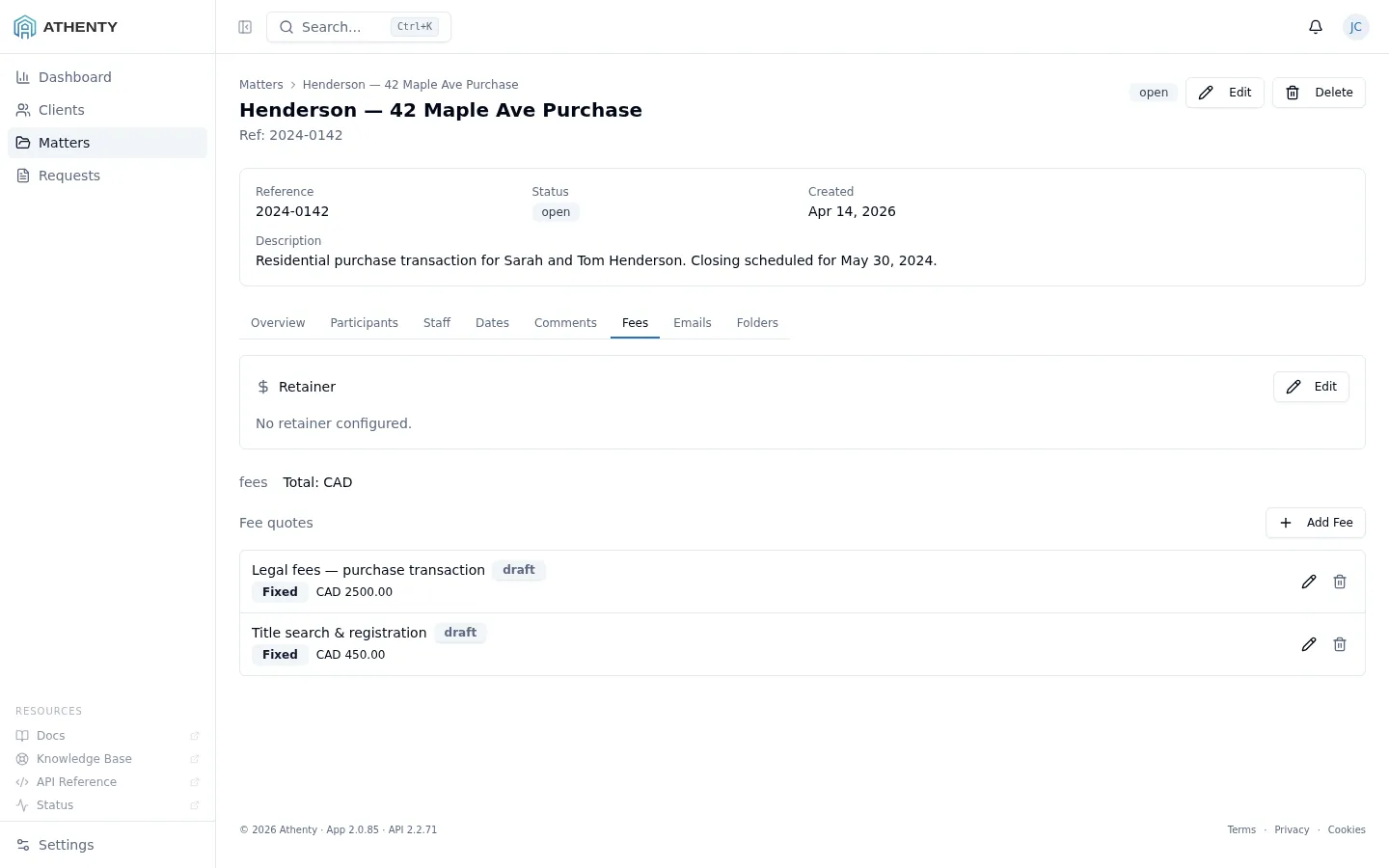
Adding a Fee
Section titled “Adding a Fee”- Click Add Fee.
- Enter:
- Description — what the fee is for
- Amount — the dollar amount
- Currency — CAD or USD
- Status — Owing, Paid, or Waived
- Click Save.
The footer shows a running total of outstanding and paid amounts.
Emails
Section titled “Emails”The matter’s Drive ▸ Emails shows all emails linked to this matter from the Outlook or Gmail add-ins.
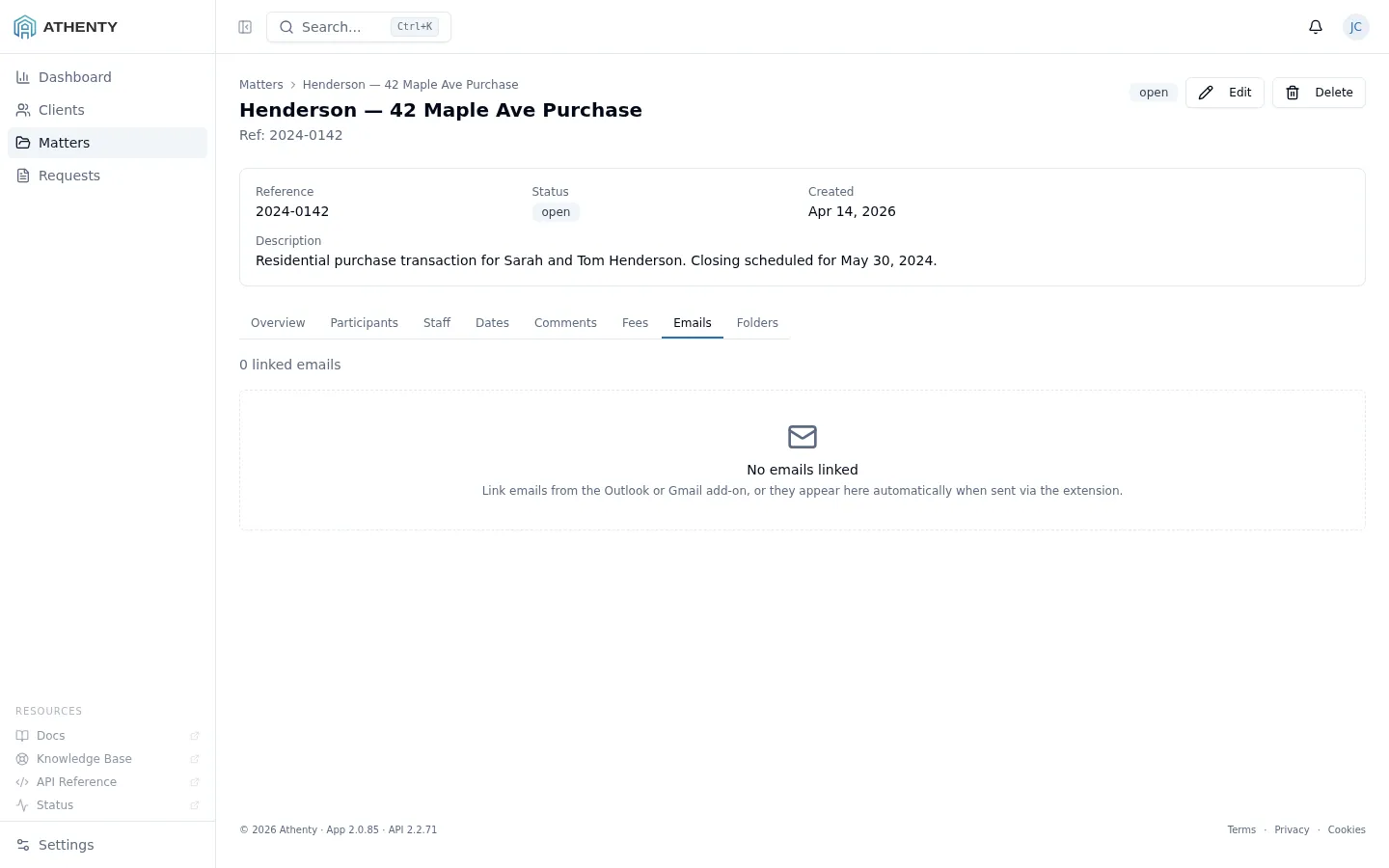
Emails are linked from within your email client using the Outlook Add-in or Gmail Add-in. Each linked email shows:
- Subject line
- Sender and recipients
- Date and time
- Body snippet
- Attachment names and sizes
Click any email entry to expand the full body text captured at link time.
Note: Emails cannot be linked directly from the Athenty portal — they must be linked from within Outlook or Gmail using the paired add-in.
Folders
Section titled “Folders”The matter’s Drive ▸ Files provides a standard document folder structure for organizing files related to the matter.
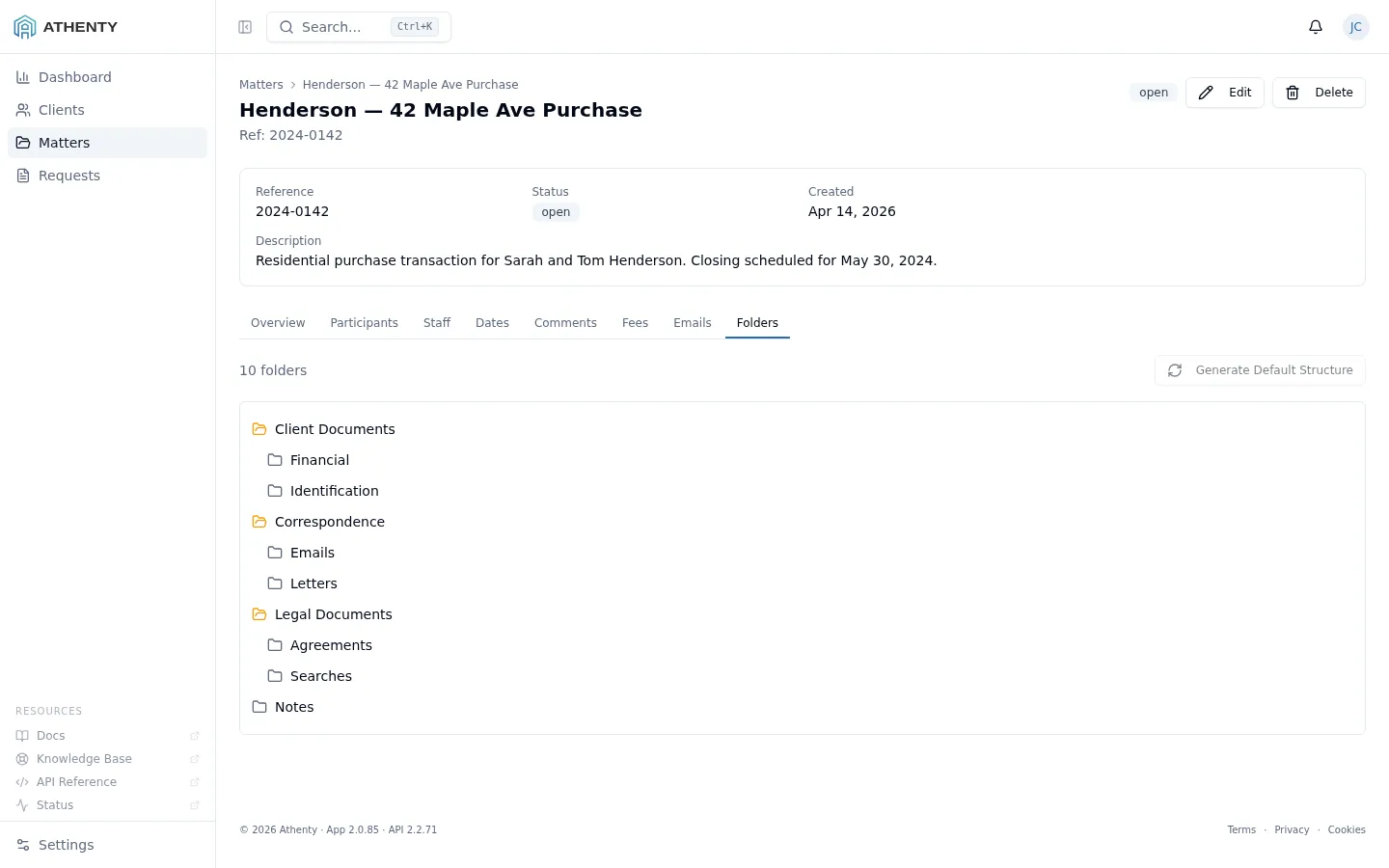
Each matter is created with a default set of folders. You can:
- Add a folder — click New Folder to create a custom folder
- Rename a folder — click the folder name to edit it
- Delete a folder — right-click or use the overflow menu (only empty folders can be deleted)
Folders are organizational — they do not store files in Athenty directly. Use them as labels that correspond to folders in your document management system or file server.
Comments
Section titled “Comments”The matter’s Messages ▸ Internal is an internal notepad for the matter — visible only to staff members on your Athenty account.
Add a comment by typing in the text box and clicking Post. Comments are timestamped and attributed to the posting user. They cannot be edited or deleted after posting, ensuring a reliable internal audit trail.
Closing a Matter
Section titled “Closing a Matter”To close a matter:
- Open the matter and go to Overview.
- Change the Status to Closed.
- Click Save.
Closed matters remain fully accessible and searchable. All linked emails, fees, dates, participants, and comments are preserved. Matters cannot be permanently deleted — they can only be closed and archived.